Guide
Why YouTube Thumbnails Matter and How to Download Them for Analysis
A practical look at thumbnail size, why clicks depend on the preview image, and a step-by-step walkthrough of this tool for YouTube. For batch image grabs from any webpage, see our browser extensions.
Last updated: May 31, 2026
A YouTube thumbnail is the small preview image shown next to a video title. It is the first thing people see in search results, on the home feed, and in related video panels.
A strong thumbnail can lift click-through rate by a wide margin. A weak one can hide a great video in the feed, no matter how good the content is.
Quick reference: YouTube thumbnail specs
- Recommended size: 1280 × 720 px (16:9)
- Minimum width: 640 px
- Max file size: 2 MB
- Formats: JPG, PNG, GIF, BMP
Why YouTube thumbnails are important
Thumbnails act like a book cover for a video. They give viewers context, mood, and tone in a single frame, even before anyone reads the title.
A clear, well framed thumbnail signals quality. It tells the viewer what the video is about and why their next minute should belong to that creator.
For the YouTube algorithm, click-through rate is a key input. The thumbnail is one of the strongest levers a creator has to move that number in the right direction.
YouTube thumbnail size and format
YouTube recommends 1280 by 720 pixels. The image should keep a 16:9 aspect ratio, since that matches the video player shape.
The minimum width allowed is 640 pixels. Anything smaller looks soft on large screens, and the upload tool may reject the file.
The maximum file size for a custom thumbnail is 2 MB. JPG is the most common pick for photo style images, but PNG, GIF, and BMP are supported too.
Common thumbnail variants
When YouTube processes a video, it generates several thumbnail sizes on its own. These include 120×90, 320×180, 480×360, and the full 1280×720 image.
Each size shows up in a different place. Smaller ones appear in playlists and Watch Later, while larger ones show in search and on the watch page.
Why higher resolution matters
A thumbnail appears at many sizes across YouTube. It can show as a tiny preview in a sidebar or as a large card on a smart TV.
Uploading the full 1280×720 version keeps the image sharp on every screen. Lower resolution files often look blurry on tablets and large displays.
Using thumbnails for viewer attention analysis
Once you save a thumbnail, study it the same way you would a print ad. Look at where the eye lands first and what feeling the image creates in a quick glance.
Check color contrast, on-image text size, and how the face or main subject is framed. These are the same factors that drive watch decisions on mobile and desktop.
For competitor research, download thumbnails from top videos in your niche. Compare layout, expression, and color choices against your own work to spot patterns.
Practical tips for studying thumbnails
Open the saved image at full size, then shrink the browser window or zoom out so the preview matches what a viewer sees in the feed.
If the message is still clear at that small size, the design is working. If the image gets lost, the creator may need fewer elements or stronger contrast between subject and background.
Comparing three or four thumbnails side by side also helps. Patterns in face expression, color choice, and text placement often show up after only a few examples.
How to use this tool for YouTube
The form at the top of this page is all you need. Follow the steps below with any public YouTube video link.
-
1
Enter the video URL
Select YouTube from the platform dropdown. Paste or type the video URL in the Public URL field. Turn on Include subtitles if you want caption tracks listed too. Complete the security check, then click Download.
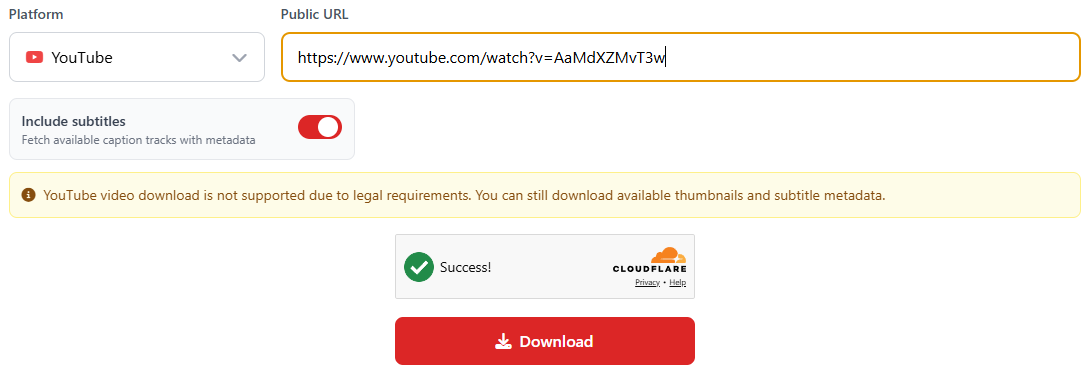
Select YouTube, paste your link, choose subtitle options, then click Download. -
2
Wait for the video description
After a few seconds, results appear below the form. The first thing you see is the video title and full description text.
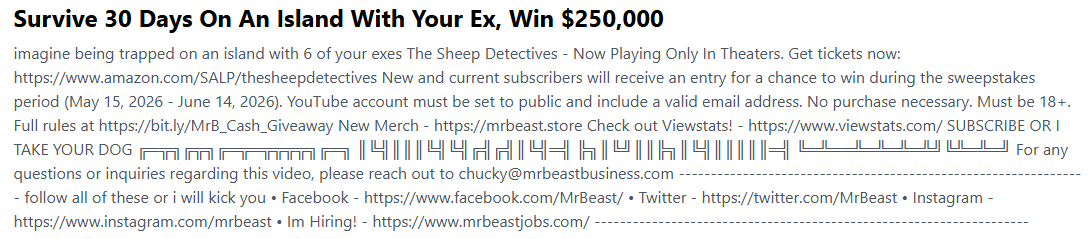
The video description loads first, right under the title. -
3
Review channel info, keywords, and links
Below the description you get an overview: channel name, view count, duration, keywords when available, and links pulled from the description. Use the Copy buttons to grab keywords or links in one click.
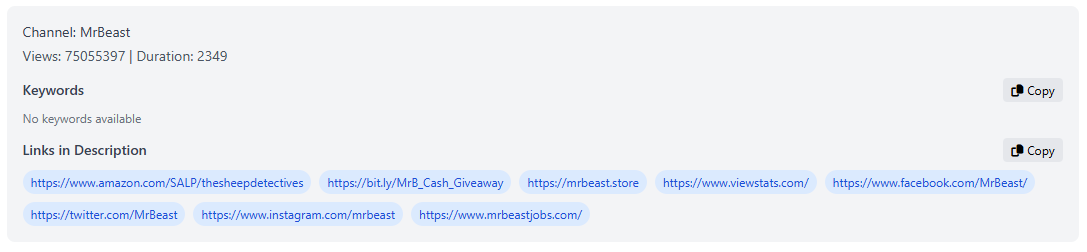
Channel stats, keywords, and description links with copy buttons. -
4
Check the thumbnail preview
On the left side of the results panel you will see a large preview of the main thumbnail.
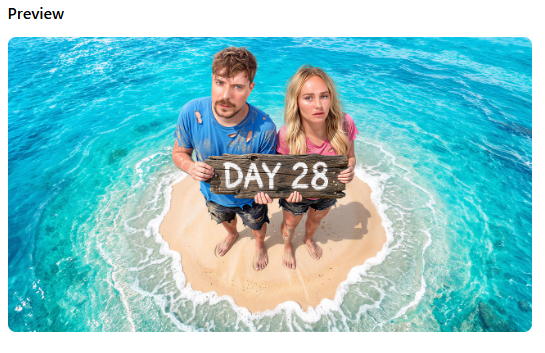
The preview shows what the video thumbnail looks like at full size. -
5
Download subtitles when available
On the right side, under Downloads, you will see a list of subtitle tracks when the video has captions. Each button downloads that language.
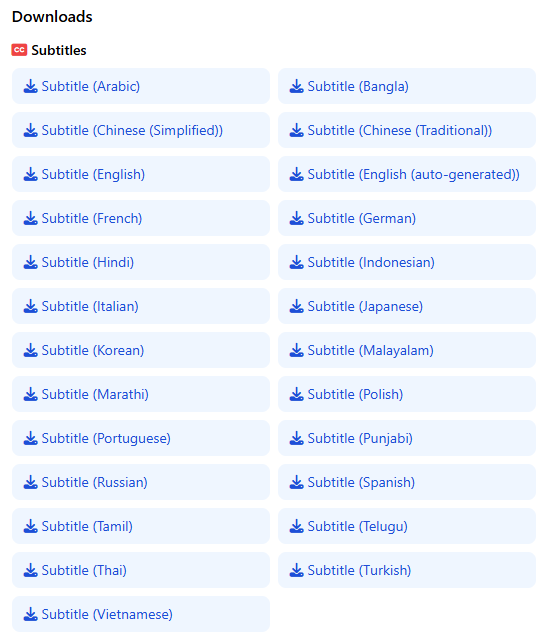
Subtitle downloads appear on the right when captions exist for the video. -
6
Pick a thumbnail size
Below the subtitles you will find all available thumbnail sizes, from max resolution down to smaller variants. Click any button to start the download.
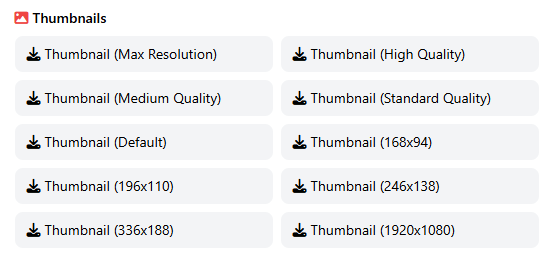
Every thumbnail size YouTube exposes for that video is listed here. -
7
Save the file to your computer
Your browser opens a save dialog based on your operating system. Choose the folder, confirm the filename, and save. The image is ready to use with no sign up required.
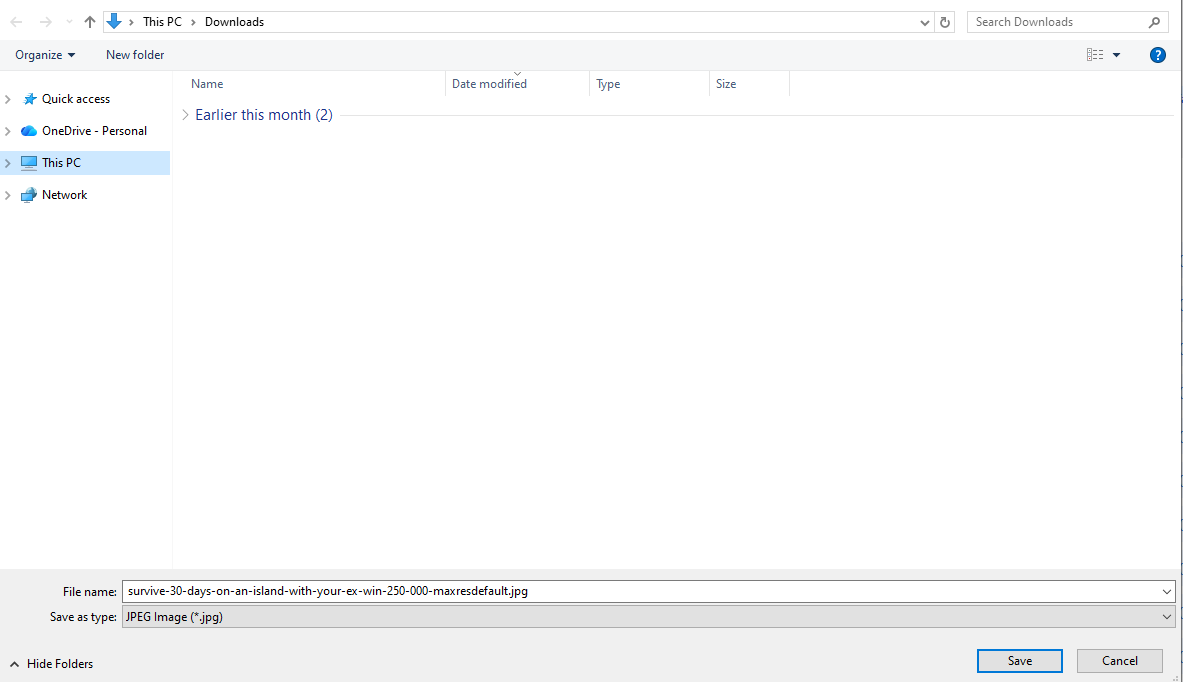
The save dialog lets you pick where the thumbnail file goes on your device.
Final thoughts
A thumbnail is a small image with a big job. Saving and reviewing them with this tool is a simple way to learn what catches attention and what gets scrolled past on YouTube.
Use the grabber whenever you want to study a video without leaving your workflow. Faster research leads to better thumbnails for your own channel over time.